
What this covers: What a project is, how to create, switch, rename, and delete one, the All projects page, and project limits per plan. Takes about 3 minutes.
What a project is
A project pairs one plugin you own against the competitors you want to track. Every competitor page, comparison, and playbook inside the project reads against your plugin.
Rivale creates your first project during onboarding and names it after your plugin. If you build more than one plugin, give each its own project.
Create a project
- Open All projects from the project dropdown or the sidebar.
- In the workspace sidebar, click New project. The same card also sits at the end of the project grid.
- In the Create a new project dialog, enter a Project name and Your plugin URL or slug. Public plugins on WordPress.org only.
- Click Create project.
Rivale opens the new project on its Competitors page, since it starts with zero competitors. Add at least one. See Adding competitors.
Switch projects
Inside a project, the project card at the top of the sidebar is a dropdown. Click it to see Switch project, your other projects, and All projects.
The All projects page
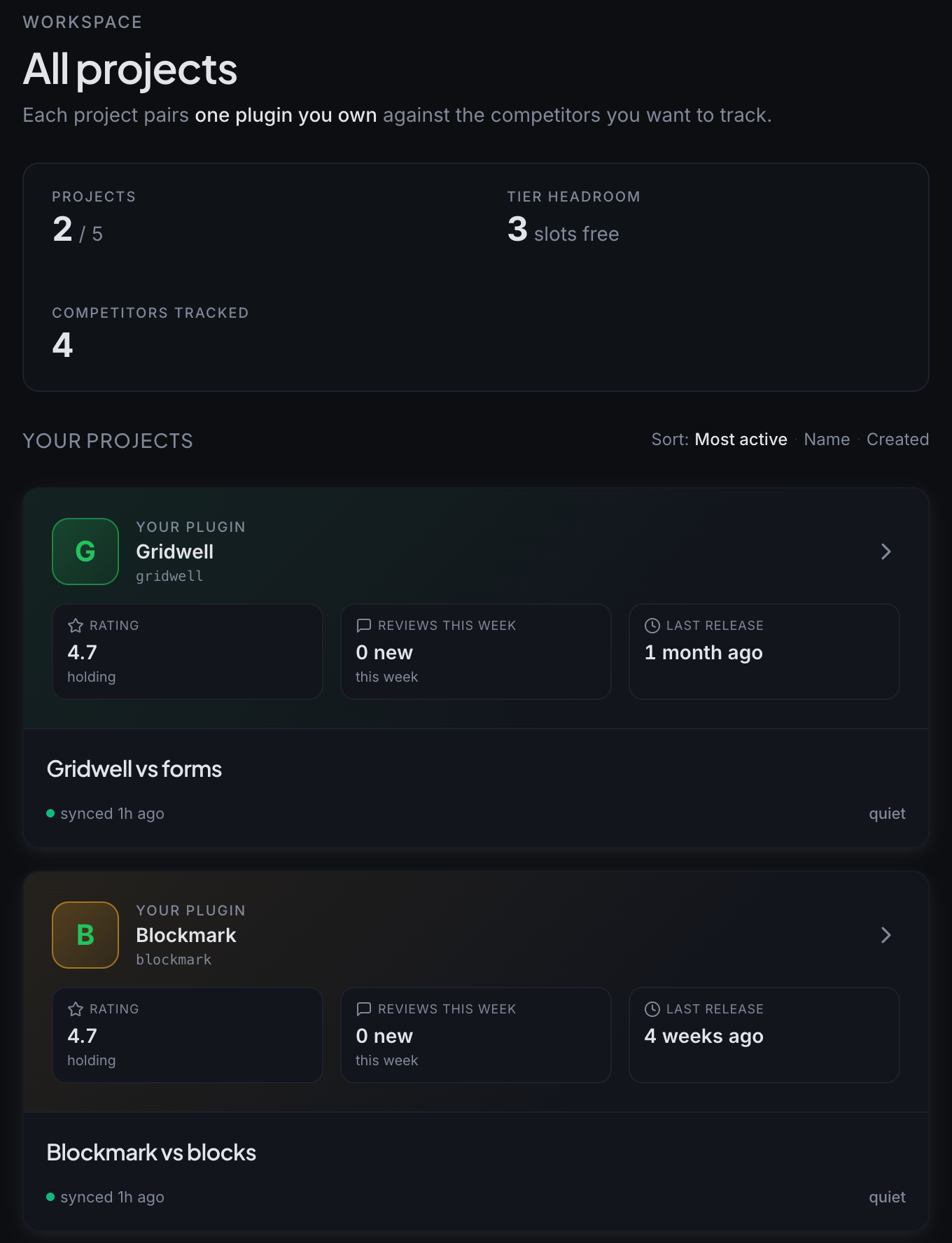
All projects is your workspace home at app.rivale.io. It shows:
- A rollup bar: Projects used against your cap, Tier headroom in free slots, and Competitors tracked across every project.
- One card per project, sortable by Most active, Name, or Created. Click a card to open it (the card shows Open on hover).
- While you were away, a catch-up of moves across your projects since your last visit.
- A Set your plugin action on any card whose plugin is not set yet.
Rename or delete a project
Both live in Settings under Projects. Open the account menu (your user chip at the bottom of the sidebar), choose Settings, and scroll to Projects.
- Rename opens a dialog with a Project name field.
- Delete opens a confirmation listing your plugin and the number of tracked competitors. Deleting removes the project and all its history. This cannot be undone. If you delete the project you are in, Rivale opens your next one.
Project limits
During the beta you can create up to 5 projects. Only competitors count toward your per-project competitor limit. Your own plugin never does.
When you hit the limit
Clicking New project at the cap shows Project limit reached and takes you to Billing. On All projects, the placeholder card locks with the same message and an Upgrade plan action. Existing projects keep working. Delete one you no longer need to free a slot.
Good to know
- Notification settings are account-wide and apply to every project.
- Manual syncs refresh every competitor across your account, in every project.
- To remove a single competitor without deleting the project, use the Competitors page.
Next: Adding competitors