
What this covers: Opening a competitor’s page, what each of its eight tabs shows you, reading its rankings, and setting up website monitoring. Takes about 5 minutes.
Opening a competitor’s page
Open your project from app.rivale.io, click Competitors in the project sidebar, then click a competitor’s row under Tracked plugins.
The page header shows the plugin’s name, its current version, its slug, and a link to its WordPress.org listing. On the right, See how it compares takes you to Compare with this competitor preselected, and Sync Now refreshes this competitor’s data.
The page opens on the Overview tab.
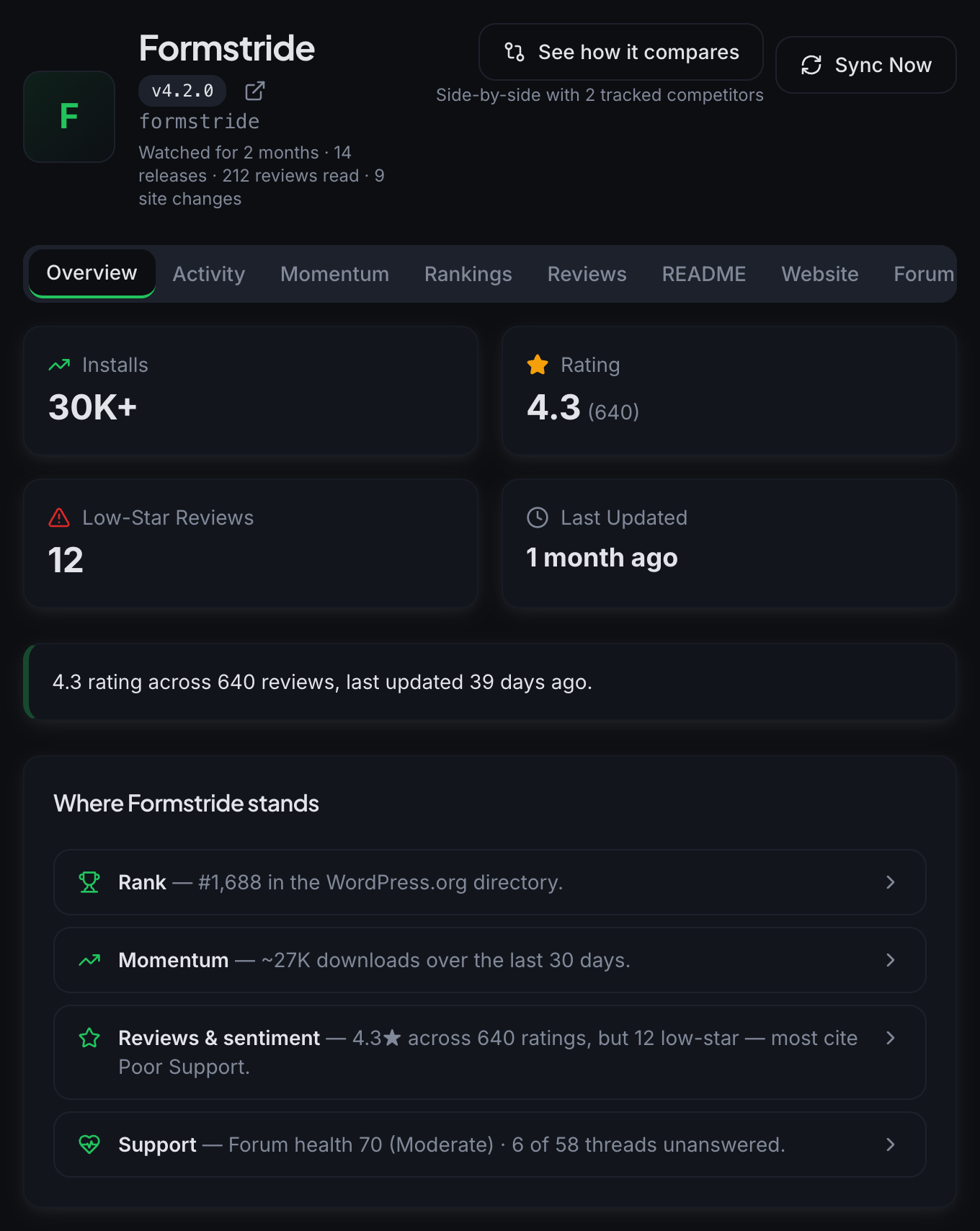
The eight tabs
Overview: four quick stats (Installs, Rating, Low-Star Reviews, Last Updated), a short snapshot paragraph, and a card titled “Where Formstride stands” with rows for Rank, Momentum, Reviews & sentiment, and Support. Click a row to jump to the matching tab.
Activity: one chronological feed of releases, reviews, README and changelog edits, and forum alerts. Use it when you want the story in order.
Momentum: a download trend chart with a period selector and a summary of release cadence. The periods you can pick follow your plan’s history window. Under Releases, a competitor you added a minute ago already lists its latest versions from its changelog. Once Rivale has dated release history, you see the cadence chart and timeline instead.
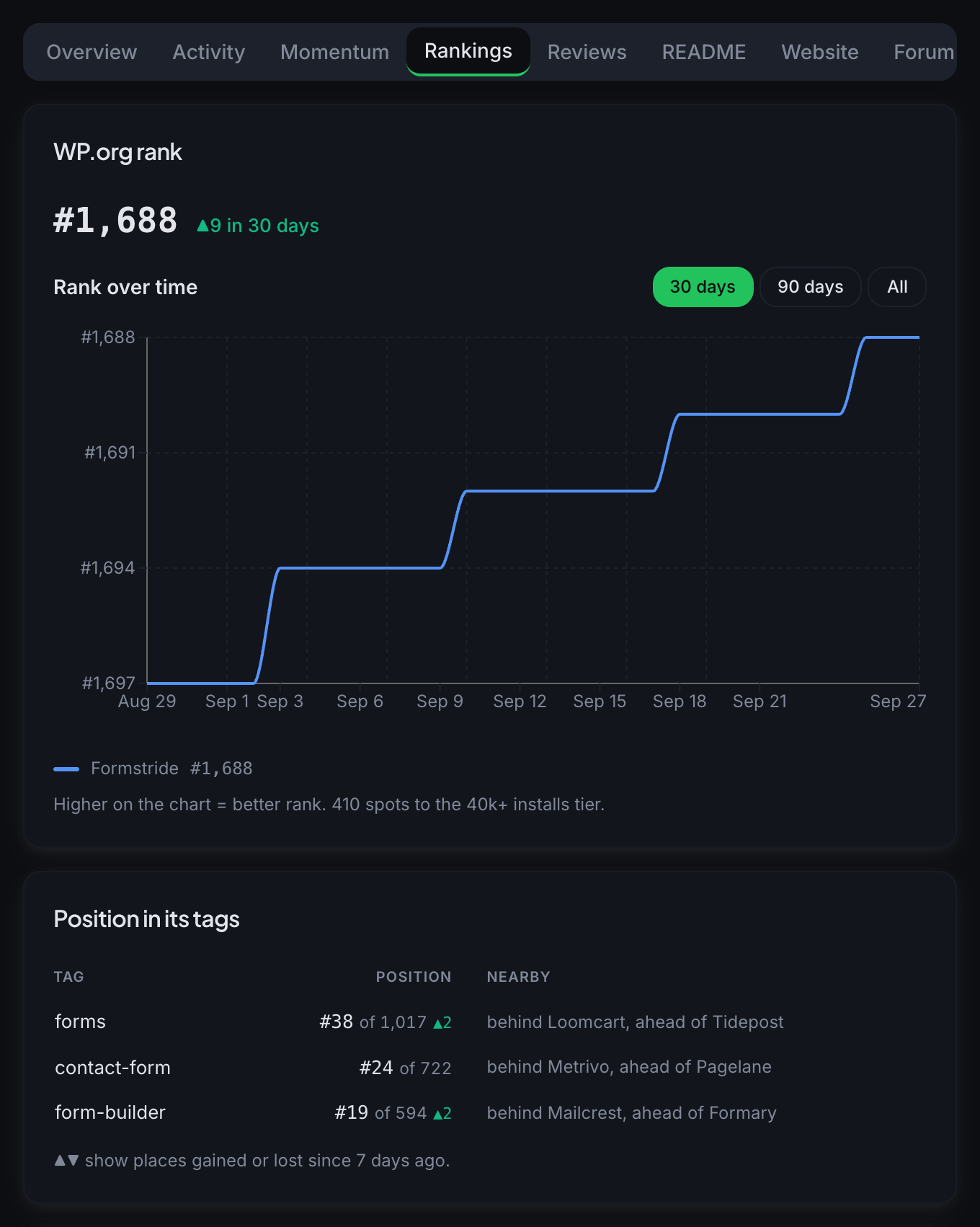
Rankings: the competitor’s WP.org rank over time, its position in each of its own tags, and where it lands on your search terms. Details below.
Reviews: a ratings chart, a Low-Star Reviews list, and a collapsible Strengths section built from high-star reviews. Rivale shows 5 reviews per section during the beta. When there are more, the tab tells you how many.
README: the README & changelog history with quick stats on top and each edit shown as a diff. A plugin you just added shows a Releases list of its latest versions there until Rivale records its first change. Version numbers show on every plan, and the notes follow your plan’s README alerts.
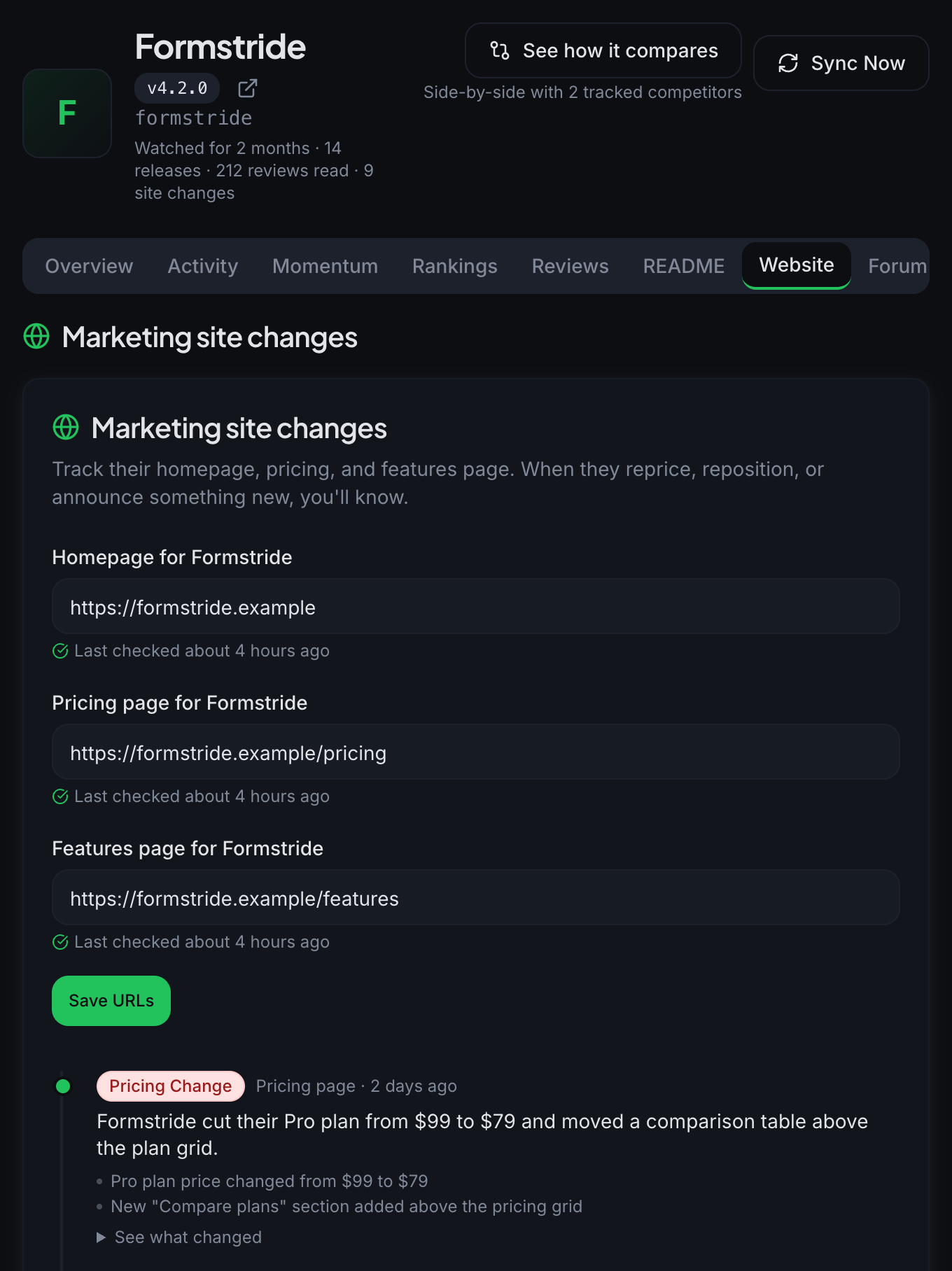
Website: Marketing site changes for this competitor’s own site. Setup steps below.
Forum: Forum health with a health score, Recent threads, Unanswered, New this week, a Thread Categories breakdown, a Resolved on WordPress.org card showing how many of the plugin’s recent support threads WordPress.org marks as resolved over the last two months, and a 30-Day History table. Plugins ranked in the top 12,500 have this history from the day you add them.
Read a competitor’s rankings
Open the Rankings tab, or click the Rank row on the Overview tab.
WP.org rank shows the competitor’s current rank and how it moved in the last 30 days. The Rank over time chart has 30 days, 90 days, and All views. Higher on the chart means a better rank. Under the chart, Rivale tells you how many spots the competitor needs to climb to reach the next install tier.
Position in its tags lists every tag on the competitor’s WordPress.org listing, its position among all the plugins that carry that tag, and the plugins just ahead of it and just behind it.
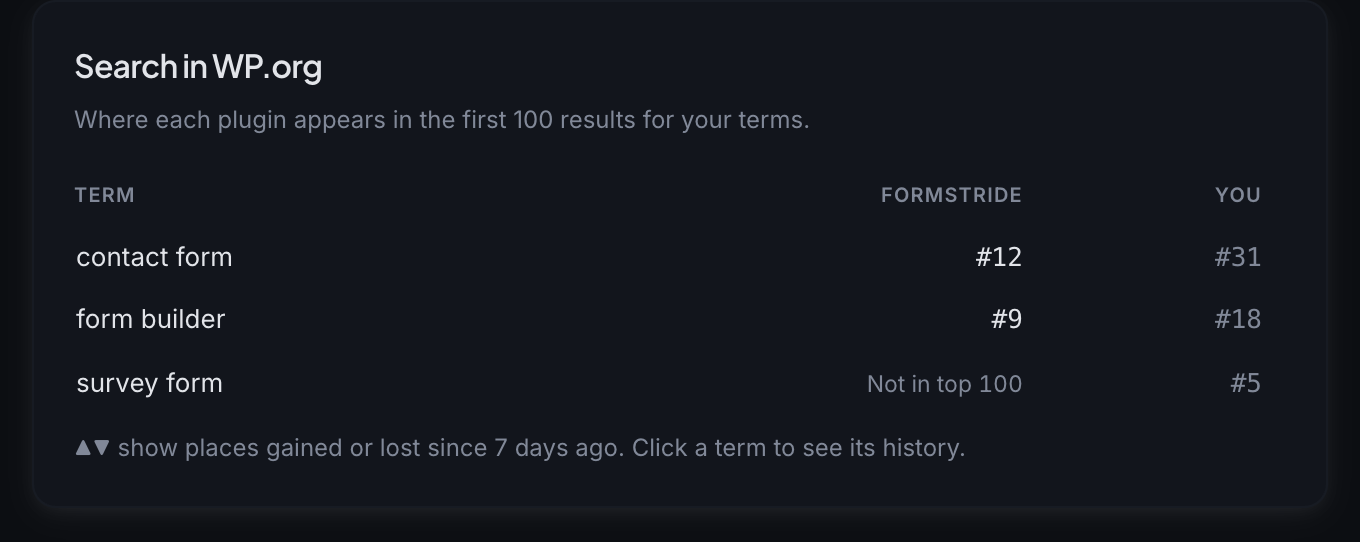
Search in WP.org shows where the competitor appears in the first 100 WordPress.org search results for each term you track, next to your own position. Click a term to open its history in Compare.
Monitor a competitor’s website
For each competitor you can watch three pages on their marketing site.
- Open the Website tab. The Marketing site changes card has three fields, one each for the competitor’s homepage, pricing page, and features page, for example Homepage for Formstride.
- Enter a URL in one or more fields. Each URL must start with
https://. If you paste an anchor link, Rivale tracks the base page. - Click Save URLs. Rivale confirms with “URLs saved” and records the page as it is right now.
- From then on, Rivale checks each saved page regularly. Under each field you see when it was last checked. If Rivale cannot read a site, it tells you and suggests trying a more specific page, such as the pricing page instead of the homepage.
- Scroll to Change history. Each entry carries a label for the type of change, such as Pricing Change or New Feature Announced, the page it happened on, the date, a one line summary, and bullet details. Click See what changed to expand the text excerpt.
To change or stop watching a page, edit or clear its field and click Save URLs again.
Good to know
- Website changes also show up in your weekly summary.
- Sync Now in the header refreshes this competitor only. Sync all competitors on the Competitors page refreshes every competitor at once.
- Change history shows the ten most recent website changes.
- The ▲▼ arrows on the Rankings tab show places gained or lost since 7 days ago.
- A competitor outside the top 12,500 on WordPress.org shows “Not in the top 12,500” instead of a rank.
- If you don’t track any search terms yet, the Search in WP.org card links you to your project Overview to add them.
Next: Compare