
What this covers: Putting your own plugin next to one or more competitors on one page, and reading the five Compare tabs. Takes about 3 minutes.
Step 1: Open Compare
Open a project and click Compare in the project sidebar, or go to app.rivale.io/compare and Rivale opens it inside your current project.
Your own plugin is always the basis. If the project has no plugin set yet, Compare asks you to set one first.
Step 2: Pick the competitors
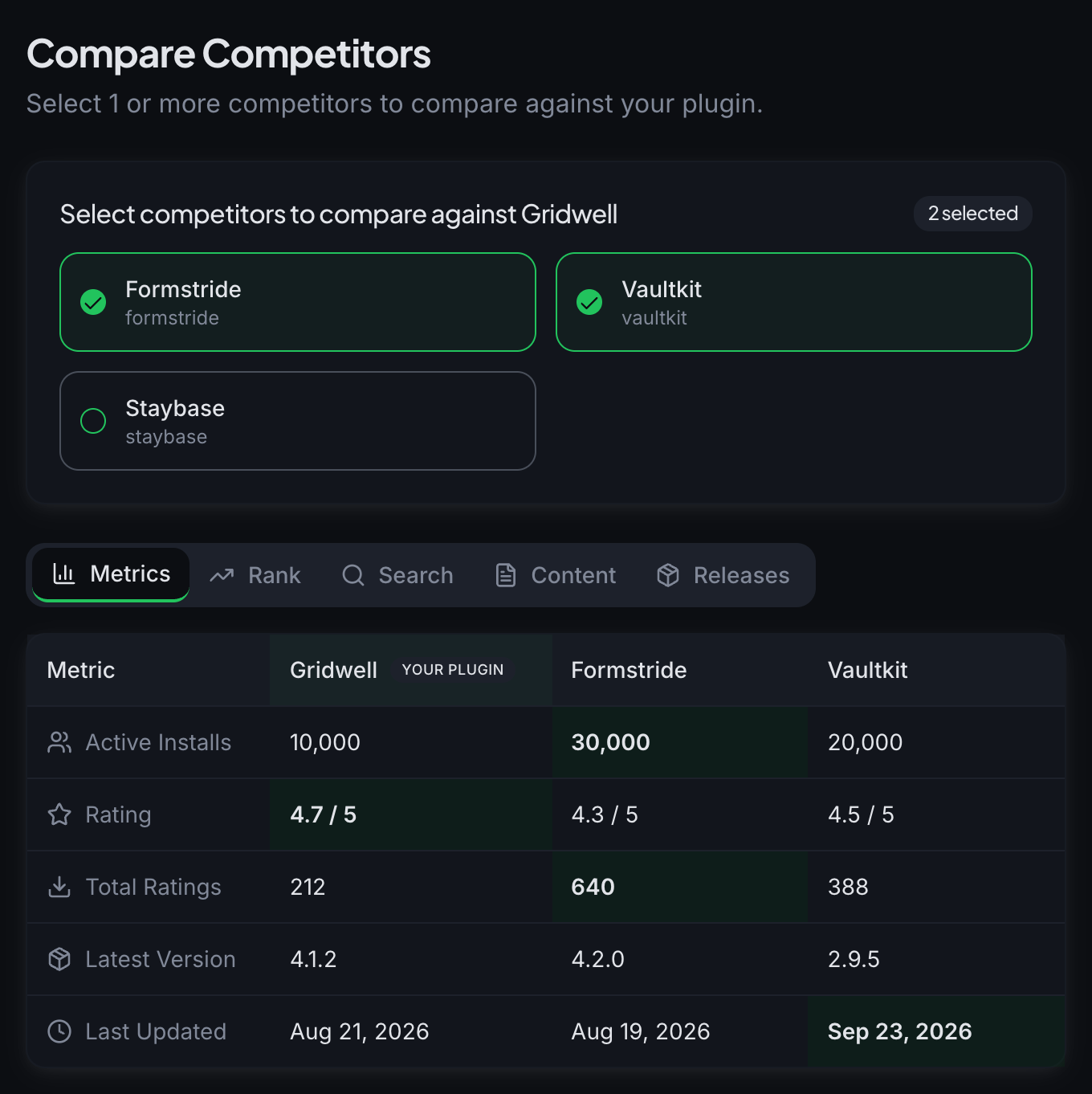
At the top of the page, Select competitors to compare against Gridwell lists every competitor in the project as a tile with a checkbox. Click a tile to add it, click it again to remove it. The badge on the right counts the selection.
When you first open the page, every competitor is selected. You need at least one. Gridwell is not a tile: it is always in the comparison and never counts toward the selection.
Step 3: Read the five tabs
Metrics is a table. Each column is a plugin, with Gridwell first and marked Your plugin. Each row is one figure: Active Installs, Rating, Total Ratings, Latest Version, Last Updated. The leading value in each row is highlighted, so a scan down the table shows where Gridwell leads and where Formstride or Vaultkit does. Click a plugin name in the header to open its competitor page.
Rank shows movement over time. WP.org rank plots each plugin’s position in the WordPress.org directory, with 30 days, 90 days, and All views (All reaches back as far as your plan’s history allows). Below it, Downloads/Day and Release Cadence overlay every selected plugin on one chart, with a period picker (7d, 30d, 60d, 90d). If Rivale has only just started tracking a ranking, the chart says so and fills in as Rivale keeps checking.
Search shows where each plugin appears in WordPress.org search for one of the terms you track. A button for each term sits at the top. Click one to switch. The chart plots Gridwell’s daily position in the first 100 results next to each competitor you ticked, with 30 days, 90 days, and All views (All reaches back as far as your plan’s history allows). A line breaks on any day a plugin is outside the top 100.
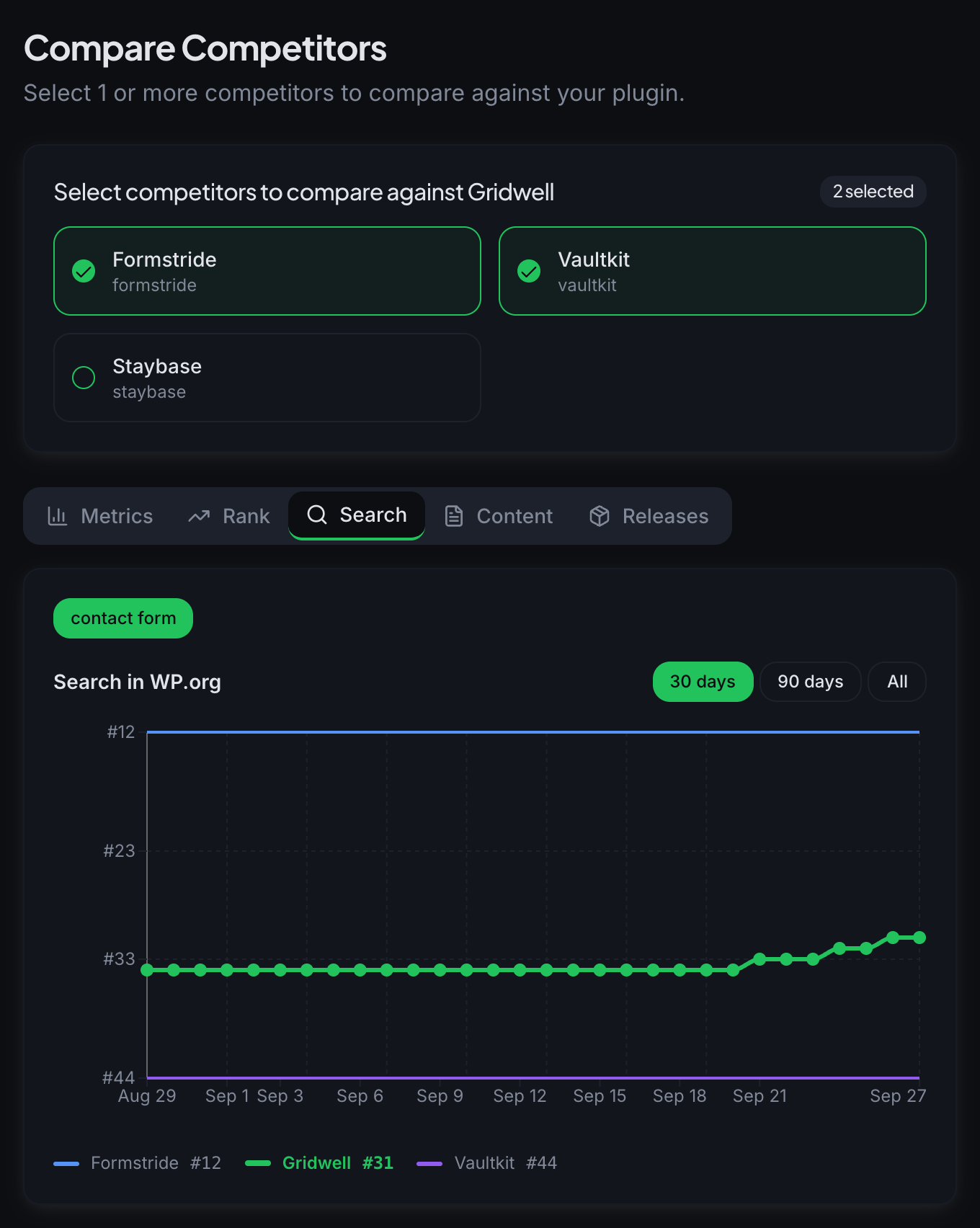
History for a term starts the day you add it, and the chart appears the next day. Until then it says “Rivale has started tracking your search positions. Check back tomorrow.” If you have not added a term yet, the tab says “Add search terms on Overview to see them here.” with a Go to Overview link. Clicking a term row in Search in WP.org on Overview opens this tab on that term.
Content is about what each plugin says about itself. Change Type Distribution summarizes the kinds of edits Rivale has seen. Content Changes gives each plugin its own column of README and changelog edits, each labeled README or Changelog.
Releases opens with Release Activity: a table of Plugin, Version, and Last Updated, then Recent Releases, one timeline of the latest releases across every plugin in the comparison, with version and date.
Step 4: Read a row
Every table and chart keeps the same order: Gridwell, then the competitors you selected. Read the Metrics table left to right and you are reading “you, then them”. On the Rank and Search charts each plugin has its own line, so the gap between Gridwell’s line and Staybase’s line is the gap you want to close or keep.
Metrics shows where things stand today. Rank, Search, Content, and Releases show how they got there.
Good to know
- Compare only uses competitors you already track. To add one, go to Competitors first.
- You can open Compare with a preset selection by address:
/compare/formstride-vs-vaultkitopens the page with those two ticked. Clicking tiles afterwards changes the selection on the page, not the address. - If a chart says data is being gathered, come back after the next sync. Compare fills in as Rivale keeps checking.
Next: Playbooks and Records