
What this covers: Playbooks (the next steps Rivale suggests), Records (what Rivale noticed and still stands by), Deliveries, and “While you were away”. Takes about 5 minutes.
Part 1: Playbooks
Step 1: Open Playbooks
Open a project and click Playbooks in the project sidebar, or go to app.rivale.io/playbooks.
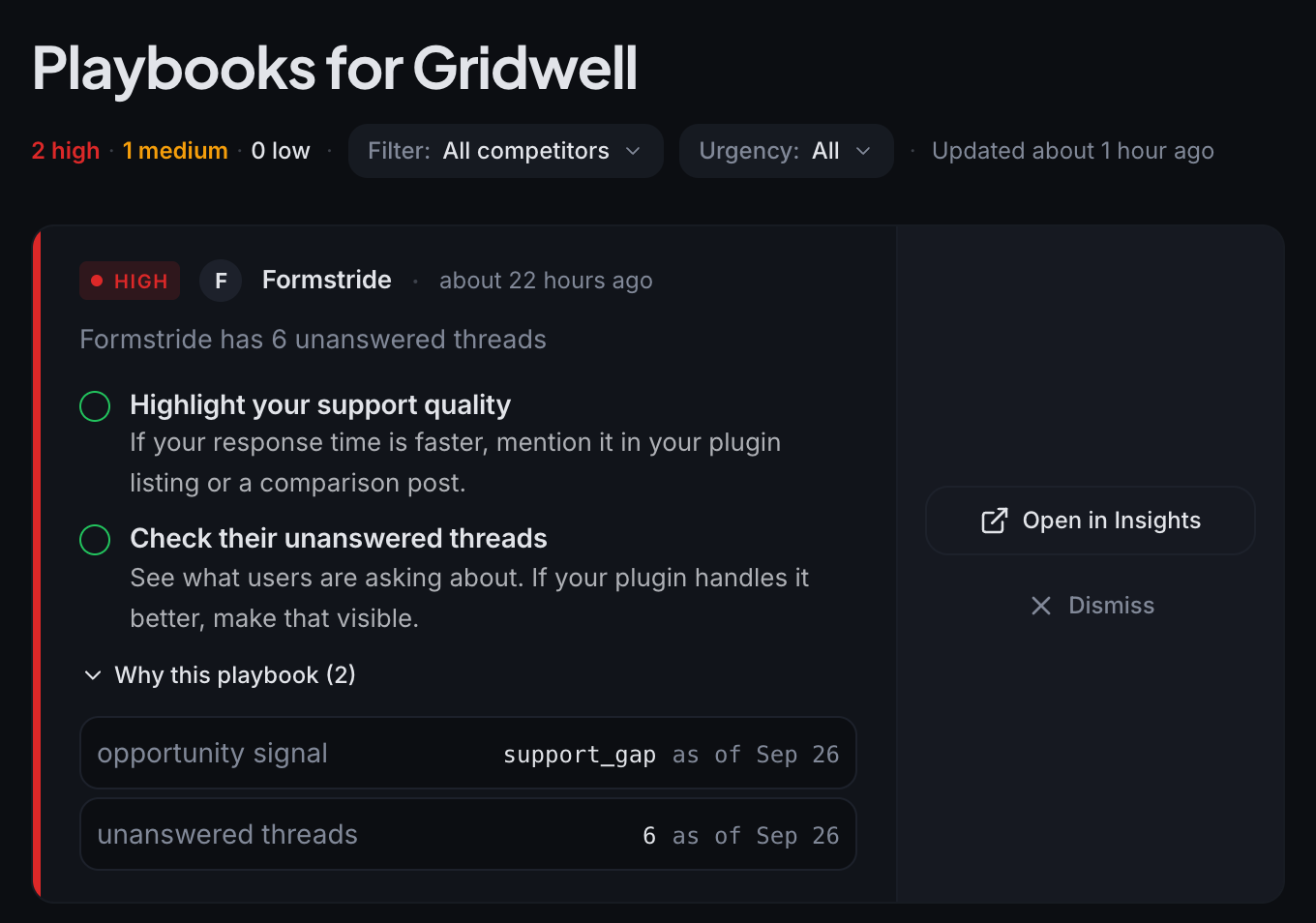
The page is titled Playbooks for Gridwell. A line under the title counts high, medium, and low urgency playbooks and says when Rivale last updated them.
Step 2: Read a card
Each card is one playbook. Most are about one competitor. Some are about your own plugin, such as a compatibility advantage worth marketing, or your readme falling behind the current WordPress release:
- An urgency tag (High, Medium, or Low), the name of whoever the card is about (a competitor like Formstride, or your own plugin), and how long ago Rivale spotted it.
- One sentence naming the signal: what changed on Formstride’s side and why it matters to Gridwell.
- One or more actions with checkboxes, each with a label and a line of detail.
- Why this playbook (N), which opens the facts behind the card, each with its date.
On the right, Open in Insights jumps to Formstride’s competitor page, and Dismiss puts the card away.
Step 3: Filter
Two chips sit next to the counts. Filter narrows the list to one competitor. Urgency narrows it to High, Medium, or Low. Cards are ordered highest urgency first. When nothing matches, Clear filters resets both.
Step 4: Check off actions
Tick an action when you have done it. The label strikes through and stays that way.
Step 5: Dismiss
Click Dismiss on a card you do not intend to act on. Show dismissed at the bottom of the page brings dismissed cards back, dimmed, with an Undo dismiss button.
When there is nothing to do, the page says so and tells you when Rivale last checked. A quiet page is a normal result.
Part 2: Records
Step 1: Open Notification history
Click Notification history in the project sidebar, or go to app.rivale.io/notification-history. The page holds two sections: Records and Deliveries.
Step 2: Read the Records section
A record is something Rivale noticed about your project that still holds true. Each row shows a type, a one-line headline, and a date. Expand it for the full text, an Evidence block listing the facts and their dates, and, when Rivale has moves for that competitor, a See your moves for Vaultkit link that opens Playbooks filtered to Vaultkit.
Active lists records that still apply. Closed lists records that stopped applying (tagged No longer applies or Updated) and records you dismissed. Dismiss inside an expanded record moves it to Closed, where the same spot shows Restore.
Step 3: Check Deliveries
Deliveries is a collapsible section under Records holding the most recent 50 receipts for notifications sent to your channels. Each receipt names the channel (email or Slack), a status (Sent, Not sent, No channel set up, or Failed), the date and time, and the event count. Expand it for What was sent, one entry per event. No channel set up means Rivale had nowhere to send it: fix that under Notifications.
While you were away
On the All projects page, While you were away collects competitor moves since your last visit, across every project. Worth a look names the competitors with the most pressing changes. Each project gets its own group with a one-line summary: expand it for the moves, or click Open Gridwell →. Mark as caught up replaces the card with “You’re all caught up”, and Show moves again brings it back.
Good to know
- Records and Playbooks are two views of the same work. A record states what Rivale noticed, a playbook states what to do about it.
- Ticking every action does not dismiss a playbook. Dismiss it yourself when you are done.
Next: Email and Slack