
What this covers: Choosing how often Rivale contacts you, connecting email and Slack, and finding a record of what was sent. Takes about 5 minutes, a little longer if you set up Slack.
Where notifications live
Open the account menu (your user chip at the bottom of the sidebar) and choose Notifications, or go straight to app.rivale.io/notifications.
These settings apply to every project in your workspace. If you track Gridwell in one project and a second plugin in another, both feed the same channels.
Step 1: Choose your frequency
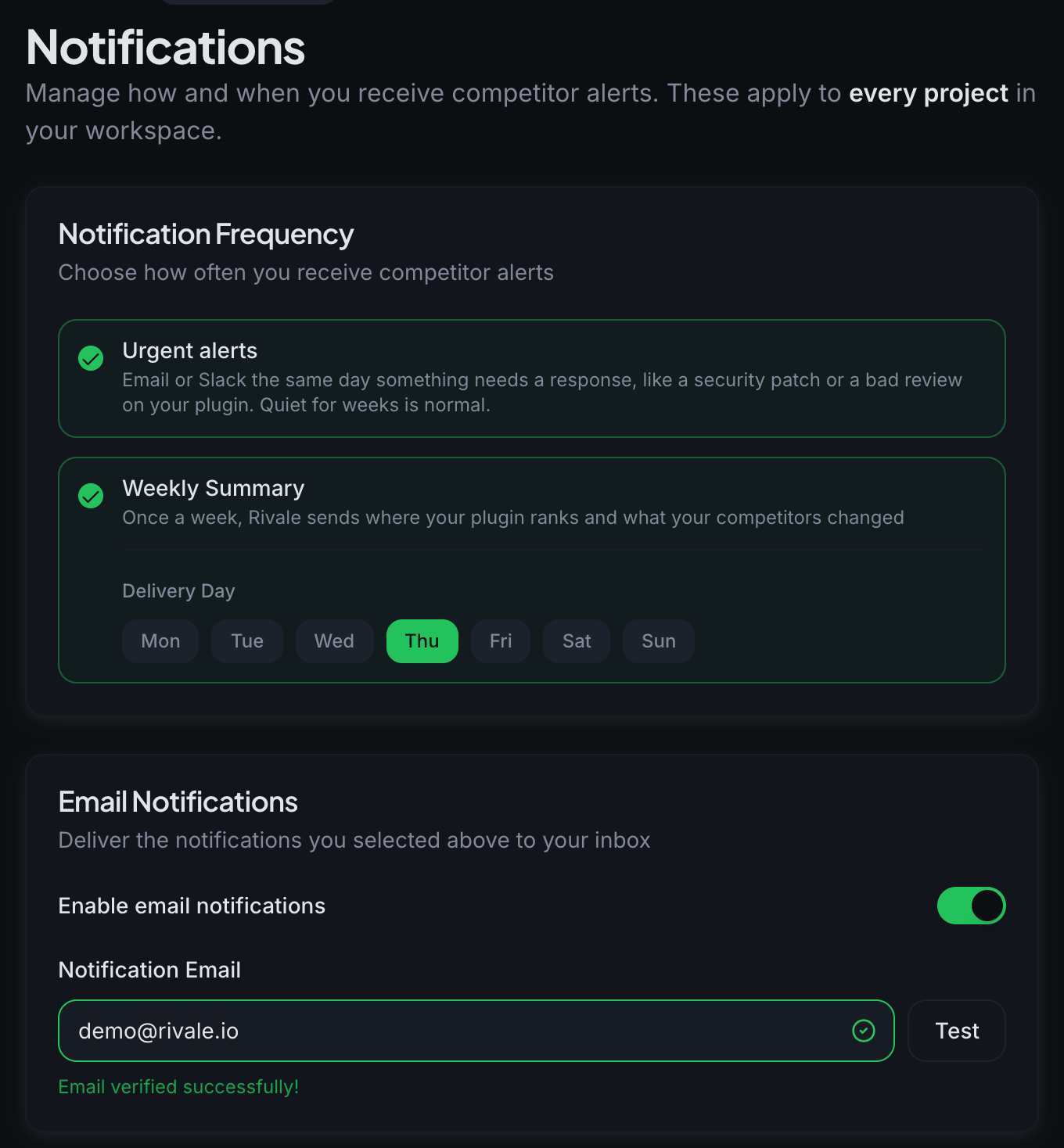
The Notification Frequency card has two switches.
- Urgent alerts: Rivale emails you or posts to Slack when something needs a response, like a security update or a pricing change at a competitor, three low-star reviews with the same complaint, or a bad review on your plugin. Quiet for weeks is normal.
- Weekly Summary: once a week, Rivale sends where your plugin ranks and what your competitors changed. Pick a Delivery Day from Monday to Sunday.
New accounts start with both switched on. Urgent alerts stay silent until something happens.
Step 2: Connect email
In the Email Notifications card:
- Turn on Enable email notifications.
- Enter the address you want in Notification Email. It can differ from your sign-in email.
- Click Test. Rivale sends a check to that address and marks the field verified when it succeeds.
Before you enable email, the card shows which address Rivale will use, so you can change it before anything goes out.
Step 3: Connect Slack
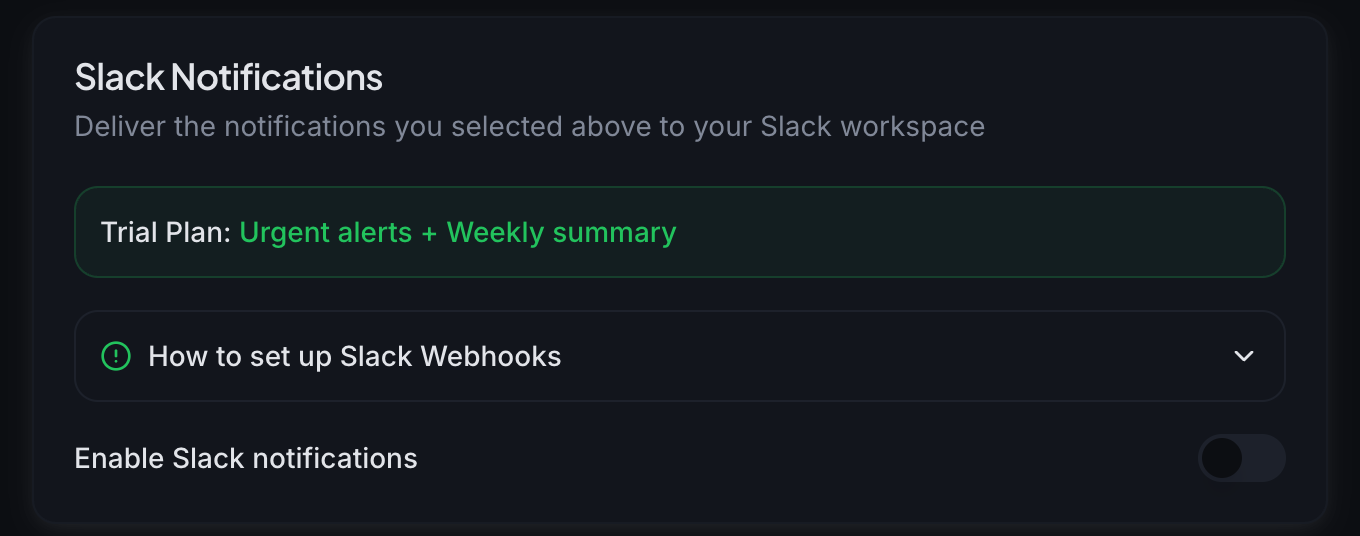
Slack settings are only available to team admins. In the Slack Notifications card:
- Open How to set up Slack Webhooks if you have not created a webhook before. It walks you through four steps: create a Slack app from scratch on the Slack developer site, enable Incoming Webhooks in that app, add the webhook to your workspace and choose the channel that should receive notifications, then copy the generated webhook URL.
- Turn on Enable Slack notifications.
- Paste the URL into Slack Webhook URL and click Test. Rivale posts a check message to the channel and marks the webhook verified.
- Optionally fill in Channel Name (optional), for example #plugin-alerts. Rivale includes it in each message for context.
Step 4: Save
Click Save Settings at the bottom of the page. Rivale confirms with a “Notification settings saved successfully” toast.
If Slack is enabled, Rivale keeps Save Settings disabled until the webhook passes its test, so a mistyped URL never gets stored.
What each notification contains
Weekly Summary. One message on your chosen day, covering the seven days before it. It reads in this order:
- An opening line names what your competitors did, for example “Formstride changed its pricing and Vaultkit released a security update.” On a week with none of those, it says so.
- A short block for each of those events: a security update, several bad reviews, or a pricing change. A security update shows the line from the competitor’s changelog when there is one. See more opens the record in Rivale.
- Your rankings on WordPress.org, in a shaded box: where Gridwell stands, how far it moved, and its biggest move in search or in a readme tag. The plugin name opens its Overview.
- Also this week lists the other updates as bullets, each with See more. Smaller listing changes are grouped, one bullet per kind, for example “2 new releases (Vaultkit, Staybase)”.
The email ends with a line that reads “Rivale checked N competitors across M projects this week” and a See all records button. Slack carries the same content in the same order.
If you have several projects, you still get one weekly. The rankings box lists each of your plugins, and an update about a competitor says which of your plugins it competes with.
Urgent alert. Sent when something needs a response, without waiting for the weekly. It states what happened and links to the evidence: Playbooks for a suggested next step, or Notification history for a run of reviews.
If email and Slack are both enabled, each notification goes to both places.
Where to see what was sent
Every project keeps its own log. Open a project and click Notification history in the sidebar. The Records section lists what Rivale found. Below it, expand Deliveries for the delivery receipts sent to your channels, most recent 50. Failed deliveries are flagged on the header, so you notice them without opening the section.
Good to know
- Enabling a channel is not enough on its own. A channel delivers only what you switched on in Notification Frequency.
- Turning off email and Slack does not stop Rivale collecting signals. Records still build up in Notification history and Playbooks.
- Team members who are not admins see a notice in the Slack card instead of the fields. Ask your admin to set up the webhook.
Next: Playbooks and records