
What this covers: Adding a WordPress.org plugin to a project as a competitor, what Rivale shows you and when, the limits on each plan, the messages you can run into, manual syncs, and removing a competitor. Takes about 3 minutes.
Step 1: Open Competitors
Open your project from app.rivale.io and click Competitors in the project sidebar. Every competitor in this project is listed under Tracked plugins, with its name, slug, install count, and when Rivale last checked it.
Under the Add competitor button, a counter shows how many slots you have used, like “2 of 10 used”.
Step 2: Add a competitor
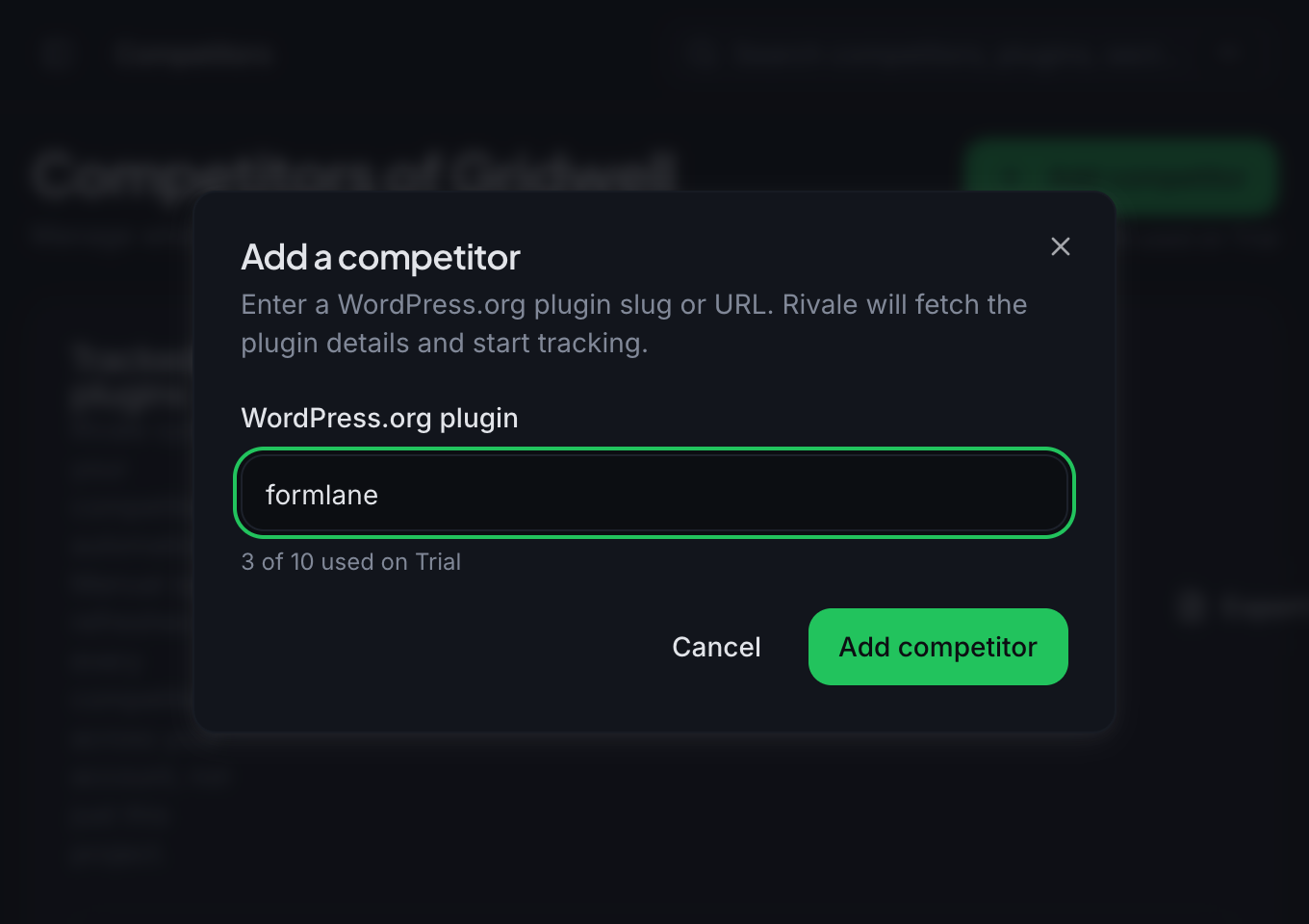
- Click Add competitor. A dialog titled Add a competitor opens.
- In the WordPress.org plugin field, enter the plugin’s slug (like
formlane) or paste the full listing URL (likehttps://wordpress.org/plugins/formlane/). - Click Add competitor. The dialog closes and Formlane appears in the list.
What appears and when
Initial data (installs, rating, reviews, and version history) appears within minutes. If the row looks thin on first load, refresh the page.
After that, Rivale re-syncs on its own twice a day. Trends, momentum, and change history build up over the following days as Rivale keeps checking.
Limits
During the beta you can track 10 competitors per project. Your own plugin never counts toward this number.
At the limit, Add competitor is disabled and the counter turns amber. Remove a competitor or upgrade to free a slot.
The + Track button in New competitors using your tags on Overview follows the same limit and is disabled once you reach it.
Messages you can run into
- “Invalid WordPress.org plugin URL”: the value is not a plugin slug or listing URL.
- “This is your own plugin for this project, not a competitor.”: you entered the plugin this project is built around.
- “This plugin is your own plugin in another project, not a competitor.”: the plugin is the basis of another of your projects.
- “This plugin is already tracked in one of your projects.”: that competitor is already in a list.
- “Limit reached”: every slot on your plan is used.
- If the slug does not exist on WordPress.org, Rivale tells you the add failed. Check the slug on the plugin’s listing page.
Sync all competitors
Rivale syncs your competitors automatically. You can also click Sync all competitors in the Tracked plugins card. A badge on the button shows your usage for the day, like “0/3 today”.
A manual sync refreshes every competitor across your account, in every project. You get 3 per day during the beta. When they are used up, Rivale tells you the limit resets tomorrow.
Removing a competitor
- Find the competitor’s row under Tracked plugins.
- Click the trash icon at the right end of the row.
Rivale removes the competitor from this project right away, with no confirmation step. Other projects tracking the same plugin are not affected.
You cannot remove your last competitor. The icon is greyed out, and hovering it shows “Keep at least one competitor”. Add another competitor first.
Good to know
- Your own plugin cannot be added as a competitor and does not use a slot.
- With read-only access in a team, the add and remove controls are hidden and the page tells you to contact your team admin.
- Export CSV and Export PDF sit next to the sync button during the beta.
Next: The competitor page