
What this covers: Signing up, adding your plugin and its competitors, reading your first Overview, and turning on notifications. Takes about 5 minutes.
Rivale is built around projects. A project is one plugin you own plus the competitors you track against it. Your plugin is the basis. Competitors are what Rivale compares it to.
1. Sign up
During the closed beta, signup is by invitation.
Once you’re approved via email, go to app.rivale.io/signup and create your account with that same address. Any other address won’t work.
After sign-up, Rivale takes you straight into the onboarding wizard. The progress bar tracks four steps:
- Create account
- Add your plugin
- Add your competitors
- Search terms
The first one is already done. A short optional screen asks for your name once the four are complete.
2. Add your plugin
On the Add your plugin step, start typing your plugin’s name. As you start typing, Rivale shows the five closest matches on WordPress.org with their icons. Click the plus next to yours. You can also paste the plugin’s WordPress.org link and press Enter. Only public plugins on WordPress.org work here.
Click Add plugin. Rivale fetches the plugin and moves you to the next step.
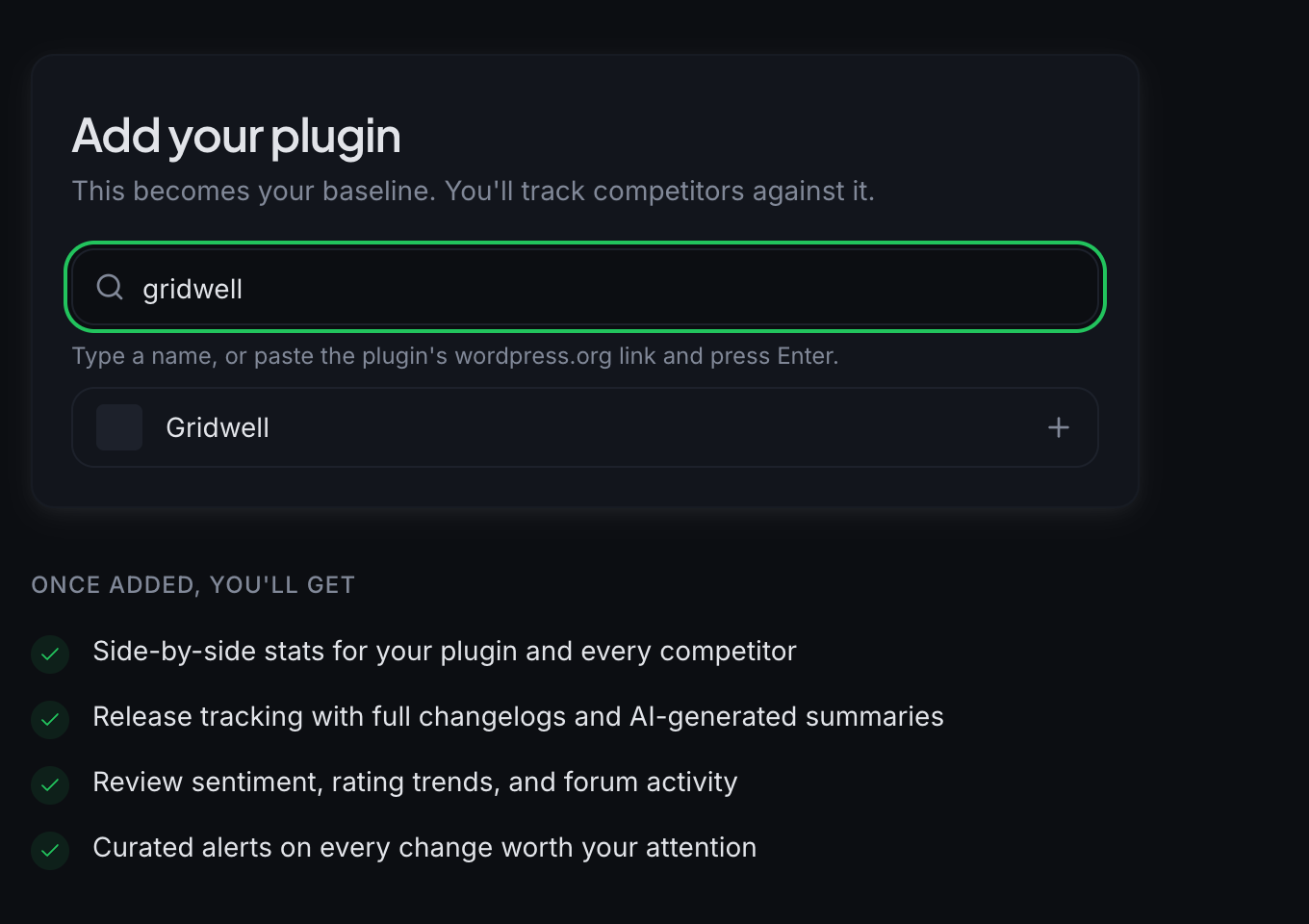
Your plugin does not count toward your competitor limit.
3. Add your competitors
On the Add your competitors step, type a competitor’s name and click the plus next to it, or paste its WordPress.org link and press Enter. Repeat for each plugin you compete with. Two or three direct competitors is a good start.
Each plugin you add appears in a list above the field with its icon, and an X removes it. A counter under the field shows how many of your plan’s competitor slots you have used. Your own plugin and plugins already in your list show as Your plugin or Added in the matches and cannot be picked twice. If a pasted link is not a published WordPress.org plugin, Rivale tells you when you click Continue.
To watch a competitor’s marketing site from day one, click + website pages on its row and paste its homepage, pricing page, or features page. Each URL must start with https://. All three are optional, and you can add or change them later on the competitor’s Website tab. Rivale records each page as it is now and flags pricing, positioning, and launch changes after that.
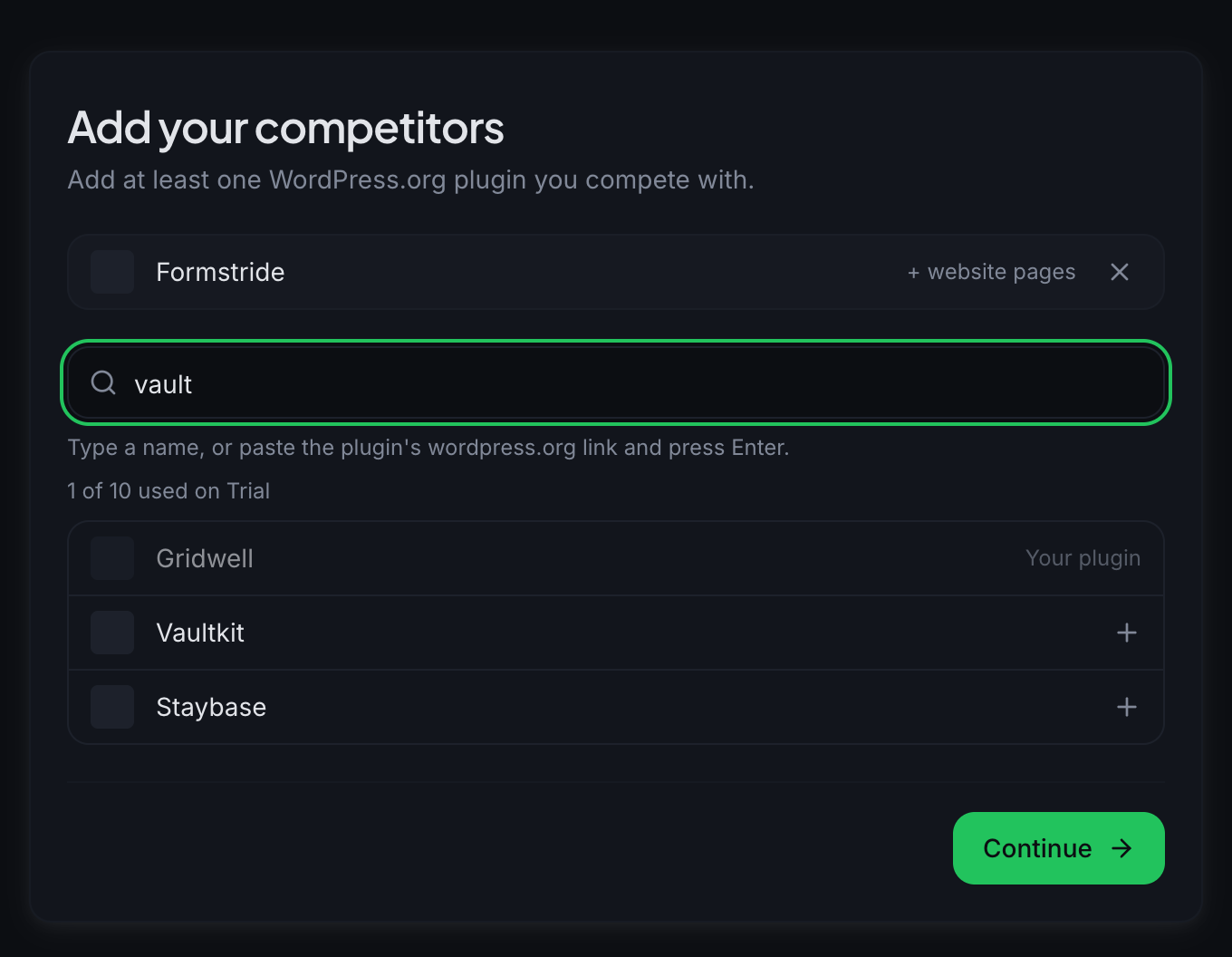
When your list is ready, click Continue. Rivale adds every competitor in the list.
4. Add search terms
The Add search terms step is optional. It lets you add up to 3 searches your buyers type on WordPress.org, for example “booking calendar”. Type a term and press Enter or click Add. It appears as a chip with an X to remove it, and a counter such as “1 of 3” shows how many you have used. Once Rivale has looked the term up, the chip shows You rank #N for Gridwell, or You’re not in the top 100. Rivale then saves the positions every day, so you can watch them move.
Click Skip for now to move on without terms, or Continue when you are done. A term you typed but did not add is saved when you click Continue. You can add or change terms later on the Overview.
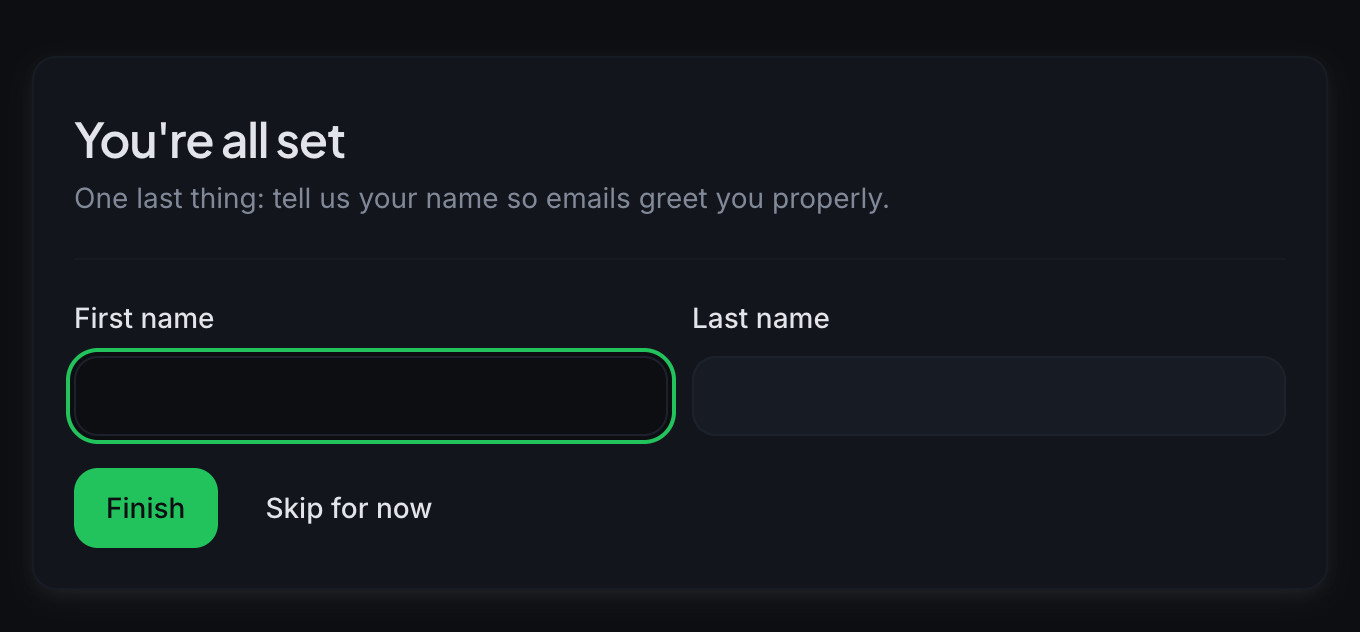
Next comes a final You’re all set screen. Enter your first and last name there if you want emails to greet you by name, then click Finish. Skip for now opens your project without a name. You can add one later under Settings in the Account section.
5. Read your first Overview
Your project opens on Overview. On first landing you see:
- A standing band for your plugin: WP.org rank and the share of the directory it places you in, the distance to the next install tier, Forum health, and a 30-day downloads delta. Some cells read as pending until Rivale has checked a few times.
- Against your competitors, under the cells: a table with a row for every plugin you track, yours highlighted. WP.org rank comes first. Then, under Position in your tags, there is one column for each readme tag your plugin uses, headed by the tag and how many plugins share it. Each cell shows that plugin’s position in the tag, or a dash when the plugin does not use that tag.
- Search in WP.org: the search terms you added. Each term is a row, with You and each competitor as columns, showing where each plugin appears in the first 100 results. The best position in a row is bold, and a Not in top 100 cell means the plugin is further down. The ▲▼ arrows show places gained or lost since 7 days ago. Click a row to open that term on Compare’s Search tab.
- New competitors using your tags: a section below your standing card. It lists up to three plugins listed in the last 12 months that share a tag with yours and are climbing in WP.org rank, and up to three that are declining. Each shows how far its rank has moved as a percentage, with a + Track button that adds it to your competitors. The section stays hidden when there is nothing to show.
- A What to watch for brief, once your first sync finishes.
- What your competitors changed: a feed of moves Rivale detected across your competitors. On day one this is usually empty. Releases, reviews, README rewrites, and support activity fill it in over the following days.
- A Go deeper row linking to Competitors, Compare, Playbooks, and Forums.
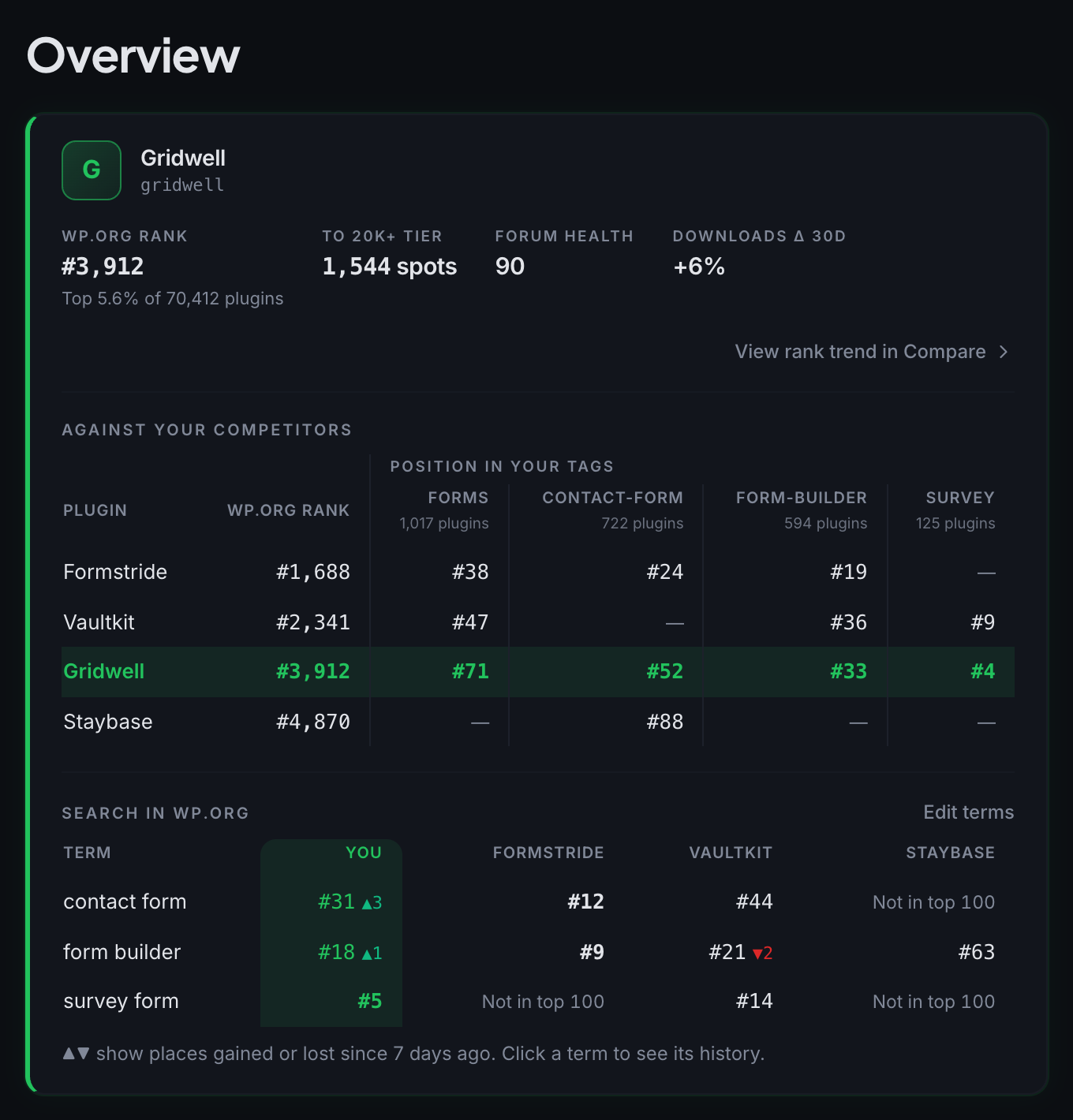
To add more terms or remove one, click Edit terms above the block, then Done when you finish. With no terms yet, the block opens the term field for you. At your limit the field is disabled and the block says to remove one to add another.
Initial data appears within minutes. If it looks thin, refresh the page. After that, Rivale re-syncs on its own twice a day. Trends and change history build up over the following days. The Competitors page also has a Sync all competitors button, with a small number of manual syncs per day depending on your plan.
6. Turn on notifications
Notifications bring changes to you. Open the account menu (your user chip at the bottom of the sidebar) and choose Notifications. Check your Notification Email. New accounts start with Enable email notifications, Urgent alerts and the Weekly Summary all on. Pick a Delivery Day and click Save Settings. Notification settings apply to every project in your account. Full walkthrough: Email and Slack.
7. Where to go next
- Competitors: your watchlist. Add or remove plugins, and open any competitor’s detail page. See Adding competitors.
- Compare: your plugin against one or more competitors on metrics, rank, search positions, content, and releases. See Compare.
- Playbooks: specific next steps Rivale generates when a competitor makes a move worth responding to. See Playbooks and records.
- All projects: if you build more than one plugin, each gets its own project. See Projects.
Good to know
- During the beta your account has full access: 10 competitors per project, 5 projects, 3 manual syncs a day, and 365 days of history.
- Rivale syncs automatically twice a day on every plan. Manual syncs refresh every competitor across your account, in every project.
- Your project takes the name of your plugin. You can rename it any time in Settings under Projects.
Next: Projects